

A polished AI video rarely comes from a perfect first prompt. The fastest way to create videos from text prompts is to treat the first generation as a draft, then make focused revisions to bring it closer to the idea you want to share.
If you’ve wondered which details belong in a prompt, or watched a first result miss the mood, action, or visual flow you imagined, you’re not alone. Even a promising clip can feel unfinished when editing and exporting add another learning curve. A repeatable workflow makes each step clearer and helps you keep your creative momentum.
This guide shows you how to shape a written idea into a focused prompt, generate a first video, and improve it with targeted revisions. You’ll also learn how to refine the edit and prepare a finished video for social publishing. Templates and editing tools can help you move faster while keeping creative direction in your hands. The goal is simple: turn your idea into an intentional, shareable video, one practical step at a time.
Key Takeaways
- Build a clearer prompt by defining the subject, action, setting, visual direction, and intended outcome.
- Understand how text-to-video tools interpret prompts, and why their approaches to scenes, motion, and editing can differ.
- Follow a practical sequence to create videos from text prompts, from choosing an idea to reviewing and preparing the result for sharing.
- Use focused prompt changes to guide a generation closer to your creative intent without adding conflicting instructions.
- See how M&R Edge Studio’s text-to-video tool, template catalogue, and editing tools can support your creative workflow.
What Does It Mean to Create a Video from a Text Prompt?
Text-to-video generation turns written direction into visual material. You describe what you want to see, and an AI system generates video based on that input. Unlike editing existing footage, which starts with clips you already have, this process starts with words and produces new visuals. As one application of Generative artificial intelligence, text-to-video can help creators move from an idea to a visual draft without filming a scene first.
Text-to-video generation creates video visuals from written instructions, with the prompt guiding the result and creator review shaping the finished piece. Tools handle this process differently. Some focus on generating scenes, while others combine generation with templates or editing features. The prompt is a starting direction, not a guarantee that every detail will appear exactly as imagined.
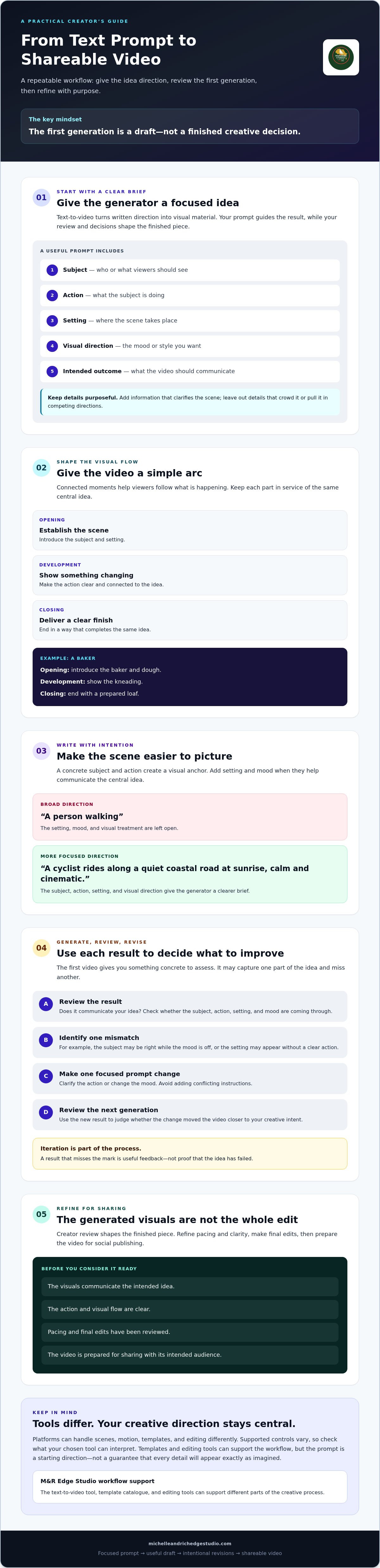
A specific idea gives the generator a clearer brief. “A person walking” leaves the setting, mood, and visual treatment open. Adding a location and atmosphere narrows the direction and gives you a more useful result to assess. That clarity matters whether you’re making a short social post or exploring a visual concept.
What Can a Text Prompt Tell a Video Generator?
A prompt can describe the subject, what they’re doing, where the scene takes place, and the mood or visual style you want. For example, “a cyclist rides along a quiet coastal road at sunrise, calm and cinematic” gives more direction than “a cyclist on a road.” These details help focus the scene without turning the prompt into a long list of competing demands.
Supported controls vary by tool, so check what your chosen platform can interpret before relying on specific options. Start with the essentials: subject, action, setting, and visual direction. Add details only when they clarify the scene.
What Should Beginners Expect from the First Generation?
Treat your first result as a draft to review, not a finished creative decision. It may capture the subject but miss the intended mood, or show the right setting without making the action clear. That doesn’t mean the idea has failed. It gives you something concrete to assess and improve.
Separate what the generator creates from what you decide as the creator. Check whether the visuals communicate your idea, then shape pacing, clarity, and final edits for your audience. If one element feels off, make one focused prompt adjustment, such as clarifying the action or changing the mood. Iteration is how you create videos from text prompts with greater intention and control.
How Does Text-to-Video Generation Turn Words into Scenes?
A video generator uses your written direction as a creative brief. It interprets the details and produces visual material, which the tool may assemble or let you refine. There isn’t one universal process: platforms differ in how they handle scenes, motion, templates, and editing.
A prompt guides a tool from written direction to generated visuals, while the platform’s features shape how those visuals are assembled and refined. Keep that distinction in mind as you create videos from text prompts. A concise, focused idea gives the tool a clearer target and makes the result easier to assess. A prompt that asks for unrelated settings, actions, and moods can pull the video in competing directions.
How Do Subject, Action, and Setting Shape a Scene?
Start with a subject viewers can picture, then use a concrete verb to make the scene move. For example, “a baker kneads dough” gives the video a clear visual anchor and action. Add a setting, such as a bright neighbourhood bakery, if it helps establish context. A warm, welcoming mood can reinforce the idea, but extra detail should support the scene rather than crowd it.
Think of each detail as direction, not decoration. If a setting or mood doesn’t help communicate the central idea, leave it out for now. A focused prompt is easier to interpret and revise than a packed list of disconnected instructions.
Why Does a Video Need a Clear Sequence?
Even a short video benefits from a simple arc: an opening establishes the scene, a development shows something changing, and a closing delivers a clear finish. For the baker, that could mean introducing the baker and dough, showing the kneading, then ending with a prepared loaf. Each moment supports the same idea rather than competing for attention.
Describe connected moments instead of piling unrelated scenes into one prompt. That gives your video a stronger sense of progression and helps viewers follow what’s happening. At this stage, focus on shaping the story rather than choosing platform-specific controls.
Before generating, check that each moment leads naturally to the next. If the sequence feels scattered in a sentence, it may feel scattered on screen too. For a practical way to carry that clear direction into a generated draft, explore the text-to-video creation workflow.
How to Write and Refine a Text Prompt for a Better Video
Give the generator a brief it can act on. Start with the core idea, then add the subject, action, setting, visual direction, and intended outcome. This keeps the prompt focused on what viewers should see and feel, rather than adding details that compete for attention. It also gives you clear elements to adjust if the first result doesn’t match your vision.
Prompt checklist: idea, subject, action, setting, visual direction, intended outcome. Treat it as a flexible guide, since tools don’t all follow the same formula.
What Details Make a Video Prompt More Specific?
Anchor the scene with one subject and one main action. Choose details you can picture or observe, such as “a florist arranges yellow tulips” rather than “beauty blooms into possibility.” Add a setting, mood, or visual treatment when it supports the purpose. For example, a bright flower shop and a calm, natural look may suit a gentle product story, while unrelated details could distract from the arrangement.
- Idea: Show a florist preparing flowers for a shop display.
- Subject and action: A florist arranges yellow tulips in a glass vase.
- Setting and direction: A bright flower shop, soft natural light, calm mood.
- Intended outcome: A welcoming short video that highlights the finished arrangement.
Keep the language direct. “Soft natural light” gives a clearer visual cue than “dreamlike but documentary, dramatic yet understated.” Conflicting descriptions make it harder to establish one coherent direction. Add details later if the draft needs them.
Compare these illustrative examples. Added direction can narrow the brief, but it doesn’t guarantee a particular output:
- Vague: “Flowers in a shop.”
- Revised: “A florist arranges yellow tulips in a glass vase inside a bright flower shop. Soft natural light, calm mood. End on the finished arrangement for a welcoming shop video.”
How Should You Revise a Prompt That Misses the Mark?
Review the result against your intended subject, action, setting, and mood. Identify the biggest mismatch first. If the florist and shop look right but the action is unclear, adjust the action phrase. If the scene feels too dark, revise the lighting or mood direction. Change one element at a time so you can tell what helped.
Remove contradictions before adding more words. A prompt that asks for both a calm, still scene and fast, energetic movement sends mixed signals. Simplify it, generate another draft, and assess the same visual goals again. This focused approach helps you create videos from text prompts with purpose, turning each revision into a useful creative decision rather than a guess.
How to Create a Video from a Text Prompt: A Practical Workflow
Turn your idea into a finished video through a repeatable cycle: plan, prompt, generate, review, revise, and export. Each stage has a clear job. Planning defines what the video needs to communicate; review and editing bring the generated material closer to that goal. Use this process to create videos from text prompts without treating the first generation as the final cut.
What Should You Check Before Generating?
Before drafting, decide what the video should say, who it’s for, and where you intend to publish it. If the idea involves several moments, arrange them into a short sequence that supports one message. Check the destination’s current format requirements before choosing an aspect ratio or export settings. Requirements can differ by platform, so don’t assume one format fits every use.
Then move through the workflow:
- Choose the idea: Define the single message or feeling the video should deliver.
- Write the prompt: Describe the subject, action, setting, and visual direction.
- Generate: Create an initial draft with your chosen text-to-video tool.
- Review: Compare the visuals with your intended message and sequence.
- Revise: Adjust the prompt or edit the draft to address the clearest mismatch.
- Export: Check the selected settings against the destination’s requirements before publishing.
How Do You Review, Edit, and Export the Result?
Watch the draft through once for meaning: can someone understand the idea without extra explanation? Then check visual consistency, scene order, and pacing. Look for abrupt changes, unclear actions, or moments that linger too long. If the video includes on-screen text, confirm it’s readable. If it includes audio, listen for clarity and whether the sound supports the visuals.
Make targeted edits using the tools your chosen platform supports. Templates can help organise a project, while editing tools can refine its structure; neither replaces your judgment about what belongs in the final video. Change what’s getting in the way, then review the full piece again. Before exporting, verify the available settings and the destination’s current requirements rather than assuming a particular format or specification.
That cycle, generate, assess, refine, and check, turns a rough result into a more deliberate piece. M&R Edge Studio combines text-to-video generation with a template catalogue and editing tools to support the process. Explore M&R Edge Studio’s video creation tools as you build a workflow for your next project.
Text Prompt to Shareable Video with M&R Edge Studio
A clear prompt sets the creative direction. M&R Edge Studio brings that direction into an AI-powered workflow, combining text-to-video generation with tools to shape and prepare your result. Keep your idea at the centre: the platform can support each stage, while your choices guide what the finished video communicates.
Which M&R Edge Studio Features Support the Workflow?
Start with the text-to-video tool to turn a written idea into generated visuals. Then use the template catalogue and editing tools to organise and refine the draft. Templates can give your work structure, while editing helps you make deliberate choices about the result. Neither replaces a focused prompt or your review of what’s working.
M&R Edge Studio offers monthly or annual memberships with recurring allowances for rendering time, multilingual voiceover generation, and access to premium templates. Once the visuals are in place, consider whether voice would strengthen the video. The platform offers multilingual voiceovers in more than 17 languages. Treat voice as an optional layer, not a requirement for every project. The priority is still a clear idea and visuals that support it.
How Can Creators Prepare a Video for Wider Reach?
Choose distribution based on your audience and the role of the content. M&R Edge Studio’s social publishing integration supports publishing to TikTok, Instagram Reels, YouTube Shorts, and other social channels. This can connect creation with distribution in one workflow, but it can’t guarantee views or engagement.
Before publishing, check the destination’s current format and publishing requirements, along with the settings available in the platform. Review the video on its own: confirm the message is clear, text is legible, pacing feels intentional, and audio works if included. A final check helps catch issues before your audience sees the post.
With a focused prompt, thoughtful revision, and a destination in mind, you can create videos from text prompts and move them toward a shareable finish. Explore M&R Edge Studio and put this prompt-to-edit workflow into practice with your next video idea.
Turn Your Next Idea into a Shareable Video
Creating a strong video from a text prompt is a process, not a one-shot result. Start with a clear idea and visual direction, generate a draft, then make focused revisions until the video communicates what you intend. A final review of pacing, readability, and audio helps prepare it for sharing.
To create videos from text prompts with more confidence, keep each instruction concrete and connected to one central idea. M&R Edge Studio brings text-to-video generation, templates, and editing tools together to support creation and refinement. When your video is ready, multilingual voiceovers in more than 17 languages and publishing integrations for TikTok, Instagram Reels, and YouTube Shorts can extend the workflow.
Explore M&R Edge Studio and turn your next prompt into a video. Start with one idea, guide each revision, and build a finished video that’s ready to share.
Frequently Asked Questions
How do I create a video from a text prompt?
Choose one clear idea, describe the subject and action, then add a relevant setting and visual direction. Submit the prompt to a text-to-video tool and review the result against your intended message. If something feels off, revise one detail at a time, then edit the draft for clarity and pacing. Before sharing, check that the final video suits its destination and meets the platform’s current requirements.
What should I include in an AI video prompt?
Include the main subject, what they do, where the scene happens, and the mood or visual treatment you want. Add the intended outcome if it helps guide the result, such as an inviting product introduction. Keep descriptions direct and compatible: “a barista pours coffee in a bright café, calm natural style” gives clear direction. Avoid packing in unrelated scenes or contradictory instructions, which can make the visual goal less focused.
Can I turn a script into a video with a text-to-video tool?
Some tools can use a script as creative direction, while others are designed to generate scenes from shorter prompts. Check the tool’s current features before assuming it can turn a full script into a complete video. For a longer script, identify its central message and divide it into connected moments. You can then prompt for the visuals and use any supported editing or voiceover options to shape the finished piece.
How do I make an AI-generated video look less generic?
Give the prompt a distinct, concrete direction instead of relying on broad requests such as “make it cinematic.” Specify a recognizable subject, a meaningful action, a setting that supports the idea, and a consistent mood. Review the output for details that feel off-message, then adjust one prompt element at a time. Editing choices also matter: thoughtful pacing, scene order, and readable text help the video feel intentional.
How long does it take to create a video from a text prompt?
There isn’t one reliable time estimate for every video. Generation and editing time can depend on the tool, the project, and how many revisions the result needs. A focused prompt and a simple sequence can make the process easier to manage, but they don’t guarantee a particular turnaround. Allow time to review visuals, refine the draft, check any text or audio, and confirm export settings before publishing.
Can I add a voiceover to a video generated from text?
Yes, if your chosen tool supports voiceovers. M&R Edge Studio offers multilingual voiceovers in more than 17 languages. Treat narration as an optional layer: decide whether spoken words clarify the message or whether the visuals work on their own. Check that the voiceover language and content suit your intended audience, then review the audio alongside the video to make sure it supports the viewing experience.
What happens if the generated video does not match my prompt?
Use the mismatch to decide what to revise rather than starting over without a plan. Compare the draft with your intended subject, action, setting, and mood. Identify the most important difference, then clarify or simplify that part of the prompt. Change one element at a time and generate another draft. If the visuals are close, editing tools may help refine the sequence, pacing, or other details the tool supports.
